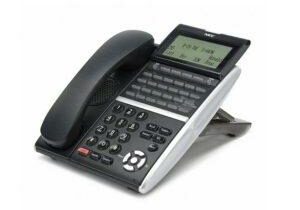
Maybe you’ve just started a new job (congratulations!) or you’ve switched work stations, there are plenty of reasons why you may need to learn how to change the name on your NEC phone. Taking the time to ensure your phone and its functions are up-to-date is a great way to be effective with your communication tools.
How to Change the Name on your NEC Phone
Follow these simple steps to change the display name on your NEC phone:
- Press Speaker
- Press 700
- Enter the extension number you want to change
- Use the number keys that correspond with the letters in your name
The # key will allow you to move over to the next letter.
You can change the letters to capital or lowercase depending on your preference.
- Press the hold key
- Press Speaker
You will now see the name you typed on the display screen of the phone.
Who Do These Instructions Apply to?
These instructions on how to change the display name will work on most NEC phones, including the models listed below:
- DT300
- DT400
- DT800
- SV 9100
- SV8100
Need help with your NEC system? See our NEC phone system support page for repairs, upgrades and more manuals.